

Comparing activities - a practical guide
By Roy Lachica on . Last updated .
Want to see how a training session, hike or bike ride stacks up against another? Tools like GpxFix makes it easy to compare two GPX activities side-by-side: distance, time, pace, elevation, and even an overlay map. This post walks through the steps and shares tips to get meaningful comparisons.
Why compare activities?
- Track progress: See if you're faster or stronger than a previous session.
- Validate routes: Confirm two rides followed the same path (or not).
- Troubleshoot devices: Spot GPS drift, wrong elevations, or gaps.
- Race prep: Compare pacing strategies or where you lost/gained time.
- Analyse optimal routes: Compare speed for specific sections of a race to find the fastest route.
- Compare athlete performance: View workouts by two different athletes to see how they compare.
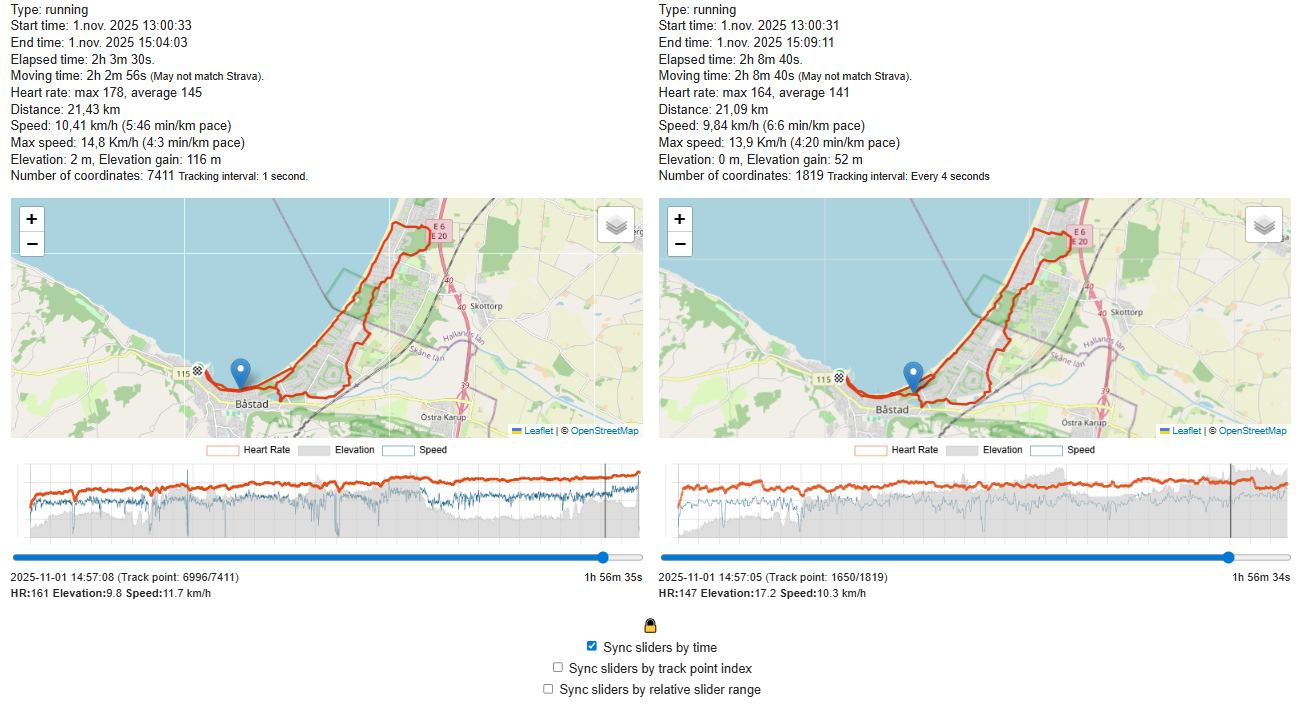
What GpxFix compares
When you load two activities, GpxFix typically computes and shows:
- Basic stats: start/end time, moving & elapsed time, total distance.
- Pace / speed: average, total and point to point details.
- Elevation: total ascent/descent, max/min elevation, and elevation profiles.
- HR: heart rate.
- Map overlay: both tracks side by side on maps so you can visually inspect differences.
Step-by-step: comparing two activities
-
Open GpxFix, upload or choose an activity as the main activity. Click the 'Compare two activities' button.
Now choose or upload the second activity.
-
Pick a slider lock method.
You can sync sliders by:
- Time — good when both recordings started at the same moment. Such at two runners participating in the same competition.
- Track point index — lock the track point indexes of both sliders. Useful for precise comparisons when both activities have the same tracking interval but did not start at the same time.
- Track range — start and end of slider 2 will match slider 1 start and end. Useful when the two activities have different elapsed time.
-
Review the two table columns and map overlay.
GpxFix will display side-by-side stats, a map with both tracks, and an elevation chart. Use hover or click to jump to the exact segment on both tracks.
Common pitfalls
- Not starting and stopping at the same place. Be accurate when starting and stopping the sports watch. GpxFix has tools to crop workouts but this is of course adds exstra steps.
- Forgetting device differences (phone vs. dedicated GPS): do make sure that you have the same tracking interval set for both devices used for the two activities.
Wrap up
Comparing two activities in GpxFix gives you both a visual and numeric way to understand differences, faster splits, extra distance, or a tricky climb. With those simple steps you’ll get comparisons that actually help improve your training and make sense of your data.
Try it now: run two activities through the Compare tool — a few minutes of exploration will reveal useful insights.
Other blog posts
- Heart Rate Stuck at One Flat Value: Causes and How to Fix It
- GPS Freezes Then Jumps: Why Your Watch Shows Impossible Speed Spikes
- TCX to GPX: Why Convert a Garmin Training Center File and How It Works
- Repairing a Workout Using a Reference GPX File
- Snap to Road: Aligning a Wandering GPS Track to the Real Route
- How Wind Turbines Can Interfere with GPS Signals
- Why Your Strava Activity Got Flagged And How to Fix It
- Why Setting the Correct Activity Type is Essential
- How to Adjust the Start Time of Your Activity
- How to Calibrate Elevation in Your GPX File
- GpxFix Blog
- How to Resample and Simplify Your GPX File
- How to Reverse the Direction of Your GPX Route
- How to Adjust Speed and Pace in Your GPX File
- How to Fix Common Strava Upload Errors
- How to Fix Incorrect Heart Rate Data in Your GPX File
- Understanding and Fixing Saw-Pattern GPS Tracks
- Understanding GPS Spike Zones: Identifying and Analyzing Erroneous GPS Data
- Heart Rate Data Missing or Corrupted in Your GPX File — Causes and Fixes
- How to Anonymize a GPX File Before Sharing It Online
- Why Your Elevation Gain Is Wrong And How to Fix It
- How to Fix a Workout When You Forgot to Resume a Paused Watch
- How to increase the distance of a Strava Activity after watch died
- Why you should skip the headphones on trail runs and races
- Tips for Recording Video While Racing — Camera Options, Battery Life, and More
- How to Create a Hyperlapse Video for Your GPX Route
- GPX Files with YouTube Video Segments: A New Way to Experience Routes
- To Pause or Not to Pause
- GPS & Elevation Accuracy Showdown 2026 | Garmin vs COROS vs the Rest
- Why Garmin and Strava Sometimes Show Different Distances for the Same Workout
- Why Your Activity Distance Is Wrong And How to Correct It
- Fixing Broken Strava Activities
- Why Some Workouts Cannot Be Fixed
- How to Get a GPX File onto Your Garmin Sports Watch
- How to Combine Multiple Runs Into One Activity
- How to removes GPS Spikes or extreme sudden movements
- Why We Are Introducing Subscription
- How GpxFix Reconstructs Indoor Track Runs — even when GPS drops out
- How to restore missing GPS data
- Crop & Cut GPX Activities — A Practical Guide
- How to Change the Distance of a Workout
- When Is It Okay, and Not Okay, to Alter Elapsed Time
- How to Change Moving Time to Match Elapsed Time
- On the Ethics Of Editing Fitness Data
- Understanding Elapsed vs. Moving Time in Strava
- How to Get Accurate GPS and Heart Rate Data